
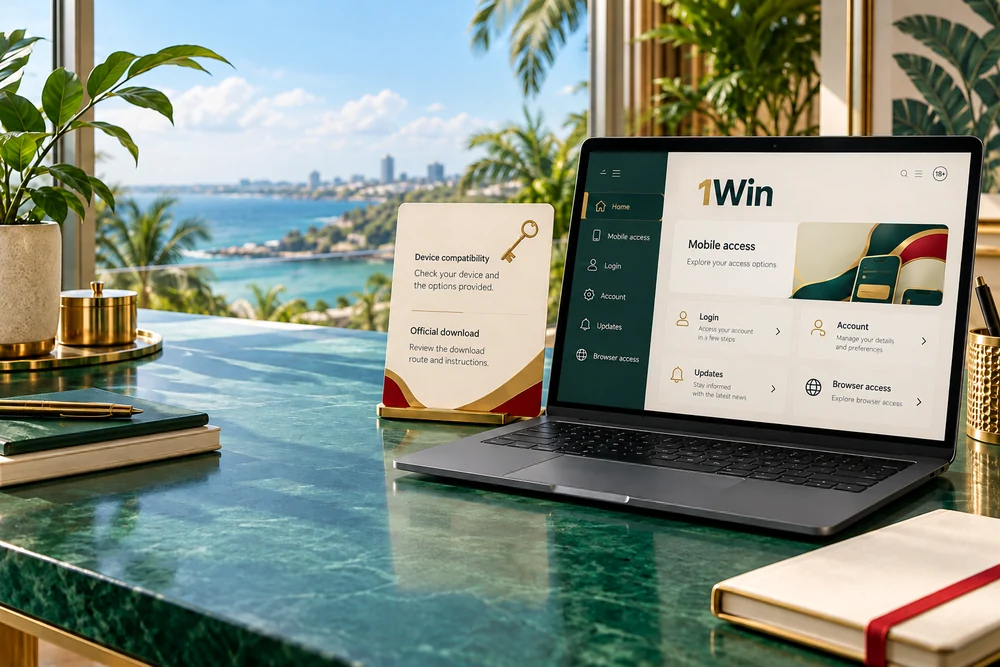
1Win mobile access guide · Ghana · 18+
1Win Ghana App & Mobile Access
Find the operator’s download route, check device compatibility and understand installation, login and updates. Compare app access with the mobile browser before choosing your setup.
Partner link: GhanaPlaybook may earn a commission. Adults 18+ only. Betting involves financial risk.
Choose the access route that fits your phone
An app and a mobile website are ways to access an operator account. Start by opening 1Win on your normal device and examining the options it provides. Check whether the browser experience is clear before installing an additional application.
This guide explains the setup decisions and common problems. It does not supply an APK download, certify a particular build or confirm an App Store listing for Ghana. Use the operator’s own device-specific route and read the requirements shown there.
App route
Choose an app only when its source and compatibility are clear. Installation uses local storage, and updates need an identifiable route. Inspect permissions and retain account recovery details before making changes.
Browser route
Check whether the mobile website works on your device. It avoids downloading a separate operator application and can provide a useful starting point. A home-screen shortcut is a convenience feature, not a verification of the site or account.
For the wider account, football and payment assessment, read the 1Win Ghana review. This page focuses on access and maintenance rather than repeating the full bookmaker review.
What to check on the download screen
App details can change between releases and account routes. Read the actual download screen rather than taking a version number, minimum system requirement or file size from an unrelated regional page.
| Detail | What to check | Why it matters |
|---|---|---|
| Source | The route provided by the operator and any verified store destination. | A matching name or icon alone does not establish authenticity. |
| Device | Operating system, supported version and other compatibility requirements. | An Android file cannot be treated as an iPhone app. |
| Download | Displayed file size and enough free storage. | The phone needs room for installation and later updates. |
| Permissions | The access requested and the stated reason. | You should understand what the app can use on the device. |
| Updates | The operator’s maintenance or verified store route. | You need a reliable source for future versions. |
| Recovery | The contact information connected to your account. | You may need to log in again after a device change or reinstall. |
If the source or device requirements are unclear, pause and ask official support. Do not fill the gap by choosing whichever search result offers the fastest download.
Android setup: follow the route provided by 1Win
If 1Win supplies an Android app option for your account and device, read its instructions before downloading. If it supplies a verified store route, inspect the destination and developer information. If it supplies an APK, treat it as an installation from outside Google Play.
- Start from the operator route. Open the mobile options and confirm you are following the intended download.
- Check compatibility and space. Read the requirements and ensure the download can complete.
- Review the file and prompts. Inspect the expected app identity and any security message before proceeding.
- Follow your phone’s installation process. Menu names vary by manufacturer and Android version.
- Review access permissions. Understand what is requested rather than granting every optional permission automatically.
- Open and inspect the app. Check account navigation and login before using payment or betting controls.
Some Android devices require permission for the browser or file source to install apps outside the store. If you deliberately enable that permission for a verified installation, turn it off afterwards. Keep Google Play Protect enabled. A source permission does not make a file trustworthy, and a harmful-app warning should not be dismissed to force installation.
If the download is blocked or the app cannot be verified, use the browser route where suitable and ask official support. Do not disable security protections, root the phone or install an unofficial modified build as a workaround.
iPhone access and the browser alternative
An APK is an Android package, not an iPhone installation file. Check whether 1Win presents an iPhone option for your location and device. Do not assume an iOS app exists because an Android download is advertised.
Where a native option is unavailable or unclear, inspect the mobile website in Safari. If the site works for your account, a home-screen icon can make it easier to open. The icon represents a website access route and should not be described as proof of a native app installation.
- Open the intended website in Safari.
- Open the sharing controls; their position depends on the Safari layout.
- Select Add to Home Screen from the available options.
- Review the name and destination, then add the icon.
Do not install an unknown configuration profile or trust an unfamiliar enterprise developer to imitate an app. If an instruction is unclear, ask official support and use a route you can verify.
Login, account recovery and a new device
Use the existing account on the access route supported by the operator. Changing phones or installing an app is not a reason to create a second account. Keep the email address or phone number connected to the account accessible.
Normal login
Check the account identifier and password carefully. A saved password may belong to a different site or an older account. If a verification step is presented, complete it through the official account process.
On a shared device, avoid saving credentials and sign out when finished. Review any session controls available in the account.
Recovery
Use the recovery option provided by the operator. Confirm that you still control the registered contact details. If repeated attempts fail, ask support to investigate the specific message instead of registering again.
Never send a password or one-time login code to a person claiming they need it to fix the app.
A login problem, a verification request and a device-installation problem require different actions. Keep the exact message and identify the stage where access stops before changing settings.
Updating or reinstalling the app
Use the update route supplied by the operator or the verified store route originally used. Do not accept a replacement package sent through an unsolicited message. Read compatibility information and any new permission request before installing an update.
- Keep recovery information available. An update or reinstall may require another login.
- Check the source. Return to the known operator or verified store route.
- Read the requirements. Confirm device compatibility and available storage.
- Complete the update. Avoid interrupting installation and review any error shown.
- Inspect the result. Check navigation and account access before submitting a payment or bet.
Before removing an app or clearing local data, understand what will be deleted from the phone. Local settings or saved access can be affected. Removing the app is not the same as closing the operator account or activating self-exclusion.
If the update fails, do not download an older build from an unknown archive. Keep the error message, use the mobile browser if appropriate and contact official support.
Mobile data, storage and budget Android phones
Judge the access route on your own connection. Downloading an app uses data and storage; using a mobile website also transfers data. This guide does not claim that one route is always smaller, faster or lighter than the other.
During download
Check the displayed file size and available data allowance. Use a trusted connection for a large update if needed. If a transfer is interrupted, inspect its status before repeatedly downloading the same file.
During use
Limit unnecessary open tabs and background activity. Avoid running several live views or streams if the device struggles. Read the slip clearly before sending an instruction.
When storage is low
Review unused downloads and applications through the phone’s own storage controls. Keep account recovery details before deleting app data. Avoid unknown cleaner tools promising to repair the betting app.
A delay on the screen does not tell you whether the server accepted an action. Inspect account history before repeating a bet or transfer. Repeated taps can create a different problem from the original slow connection.
Common problems and useful first checks
| Problem | First check | Next step |
|---|---|---|
| Download does not finish | Connection, free storage and download status. | Return to the verified source and inspect the error before retrying. |
| Installation is blocked | File source, compatibility and the security message. | Keep protection enabled and ask support if authenticity is unclear. |
| App closes unexpectedly | Available update, device requirements and storage. | Restart the app or phone; keep recovery details before reinstalling. |
| Login fails | Account identifier, recovery details and exact response. | Use official recovery or support rather than a second registration. |
| Page or slip seems frozen | Connection and account history. | Confirm whether the action was accepted before repeating it. |
| App and browser look different | Selected account, market, page and session state. | Compare the actual account information and ask support about discrepancies. |
For a support request, provide the device model, operating-system version, app version if shown, error message and stage where the problem occurs. Include a transaction reference only if the issue concerns a payment. Exclude passwords, wallet PINs and one-time codes.
Do not use a VPN or another person’s details to work around an account or location restriction. Ask support what access is permitted for your account.
Use mobile access without repeating actions
Before confirming a bet, inspect the selection, period, stake and potential return. Before confirming a payment, inspect the amount, currency and recipient details. A smaller screen makes these checks more important, not less.
If a confirmation is missing, check history first. An app reinstall cannot resolve an unclear transaction by itself. Keep the reference and request investigation through the operator’s official support.
For the promo code and offer conditions, read the Ghanawins promo code guide. Installing an app does not by itself establish eligibility for a registration reward or change the terms of an active bonus.
Final setup checklist
- The source and access route are clear.
- The device meets the requirements shown by the operator.
- You understand permissions and have left security protections enabled.
- Account recovery information is available.
- You know the update route and official support channel.
- The account and payment controls are readable on your normal screen.
Account controls and responsible use
App convenience does not remove betting risk. Set spending and time limits before opening a session. Reduce promotional notifications where they make it harder to keep those limits, and keep essential money outside the account.
If you want to stop, use the account closure or exclusion process and available payment controls. Deleting an icon or uninstalling an app alone does not prevent access through another device or browser. Adults 18+ only.
Technical references: Google Android Help — downloading apps and Google Play Protect; Apple iPhone User Guide — adding a website icon to the Home Screen. Device instructions vary by system version.
1Win Ghana app: questions answered
Where should I get the 1Win app for Ghana?
Open 1Win through the partner link and use the download option supplied for your device, if one is available. Check the source and compatibility information before installing. This guide does not provide a separate APK file or an unverified store link.
Can I use 1Win without installing an app?
Check whether the mobile website works on your phone and account route. Browser access avoids a separate app installation. A browser shortcut can make the site easier to open, but it is not proof that a native app has been installed.
What should I do if an Android installation shows a security warning?
Pause and read the warning. Check the source and contact official support if needed. Keep Google Play Protect enabled and do not override a harmful-app warning just to complete the installation. Use the browser route if suitable.
Can an Android APK be installed on an iPhone?
No. An Android APK is not an iPhone installation file. Use only an iPhone option provided by the operator, or use the mobile website where available. Do not install unknown configuration profiles to imitate an app.
Do I need a new account for app access?
Use your existing account details on the operator’s supported access route. Do not create another account merely because you changed devices or installed an app. If access fails, use the official recovery process.
How should I update the 1Win app?
Use the update route supplied by the operator or the verified store route originally used. Check compatibility and any new permissions. Avoid replacement files from unsolicited messages, and keep account recovery information available.
Does reinstalling the app cancel my betting account?
Removing an app from a phone and closing an operator account are different actions. Account closure, limits and exclusion require the relevant account process. Keep recovery details before removing local app data or reinstalling.
Where can I read about promo code Ghanawins?
Use the GhanaPlaybook 1Win Ghana promo code guide for Ghanawins, entry steps and offer-condition checks. Installing an app does not by itself confirm that a registration offer has been applied.
GhanaPlaybook is an independent information and review project. Partner links may generate commission. No guaranteed winnings or income. 18+.